
Forms
Create forms and form sections in the editor.
Forms collect visitor input from Mini Agency sites. Use them for contact requests, quotes, bookings, newsletter interest, gated downloads, and simple intake workflows.
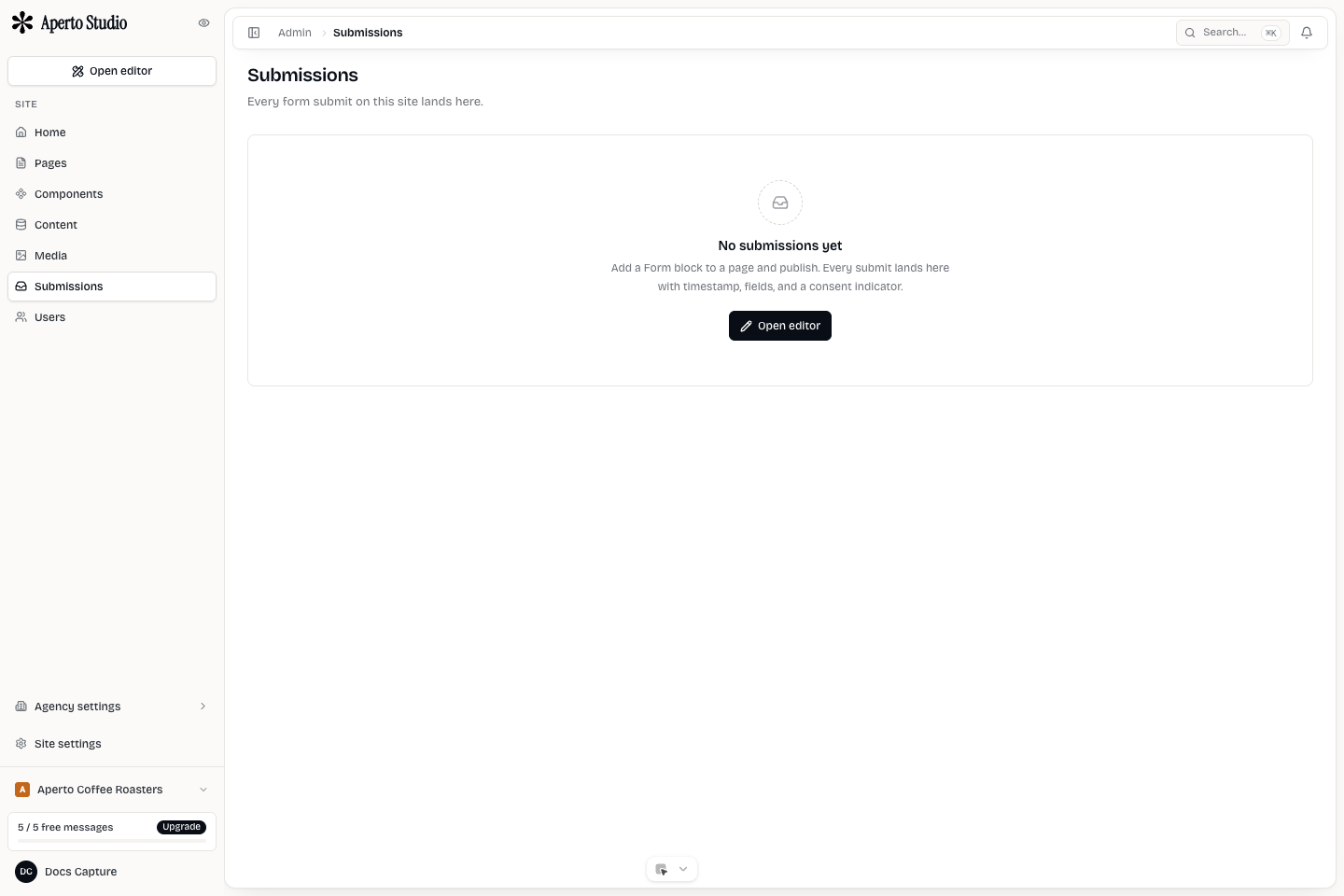
Add a form
Add a form section from the editor insert flow or convert an existing section into a form structure. A form contains fields, submit behavior, success copy, and optional redirect behavior.
Start with the smallest form that does the job. Long forms reduce completion. Ask for only the fields your team will use.
Configure fields
Each field should have a clear label, field name, input type, and required state. Field names are the keys used in submissions, exports, and automation. Keep them stable once a form is live.
Common field setup:
- Name: text input, required.
- Email: email input, required.
- Company: text input, optional.
- Message: textarea, required.
- Consent: checkbox when consent is needed.
Use help text for fields that can be misunderstood. Do not hide essential instructions in placeholder text, because placeholders disappear while typing.
Submit actions
A form can show a success message, redirect visitors, or trigger configured submission handling. Pick one main post-submit path. For lead forms, a clear success message is usually enough. For checkout or booking flows, redirect to the next step.
If a redirect is used, test it in staging before publishing. Confirm whether it opens in the same tab or a new tab.
Privacy and spam controls
Forms can collect personal data. Use consent copy when the form purpose requires it, and avoid asking for sensitive data unless the workflow needs it. If spam becomes a problem, enable the available protection controls and reduce anonymous high-risk fields.
Test before publishing
Before a form goes live:
- Submit a valid entry.
- Submit with required fields missing.
- Confirm success copy or redirect behavior.
- Confirm the submission appears in Admin.
- Export or inspect the submission if the team will use exports.
- Test on mobile.