
Media
Upload, reuse, and manage images and generated assets.
The media library stores images and assets used by a site. It helps creators reuse approved visuals instead of uploading or generating the same kind of image repeatedly.
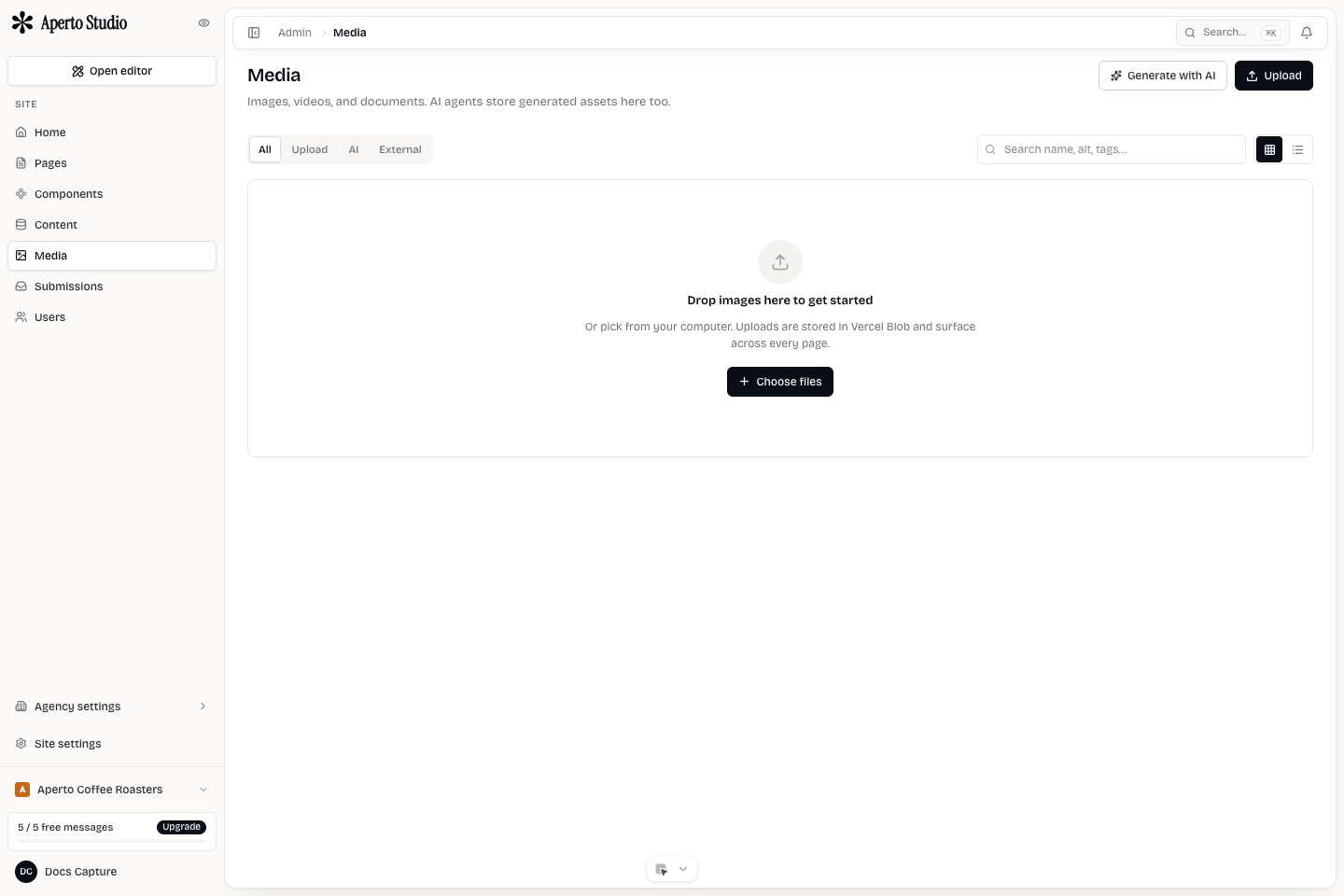
Upload assets
Open Media from the Admin sidebar. Upload images the site is allowed to use: brand photography, product shots, team portraits, logos, illustrations, and icons. Use descriptive file names before upload when possible.
Large images should still be intentional. A huge source image may be useful for cropping, but repeated oversized uploads make the workspace harder to manage.
Generate images
When AI generation is enabled, generate images from the Media surface or editor flows that support it. Write prompts that describe the subject, style, composition, lighting, and constraints. Avoid vague prompts such as make it better.
Generated images should be reviewed like any other asset. Check cropping, brand fit, visible artifacts, and whether the image represents the client accurately.
Reuse before replacing
Before uploading a new image, search the library. Reuse is especially important for logos, team portraits, product photos, icons, and repeated background textures. Reusing assets keeps the site consistent and makes future replacements easier.
Alt text
Images that communicate information need useful alt text. Decorative images can use empty alt text when they do not add meaning. Product, team, location, and article images should describe the content clearly.
Good alt text: Roasted coffee bags on a wooden counter.
Poor alt text: Image or nice photo.
Cleanup
Delete unused assets only after checking where they appear. If an image is used by a published page, deleting it can break that page. When replacing a widely used image, update the nodes that reference it first, then remove the old asset.